Sentry Page Protection
Data Analysis [15-15]
(OUT=) Option
Just like Proc Univariate and Proc Means, you can create an output data set for the analysis results for Proc Freq as well.
Let's take a look at the CS data set again.
Let's take a look at the CS data set again.
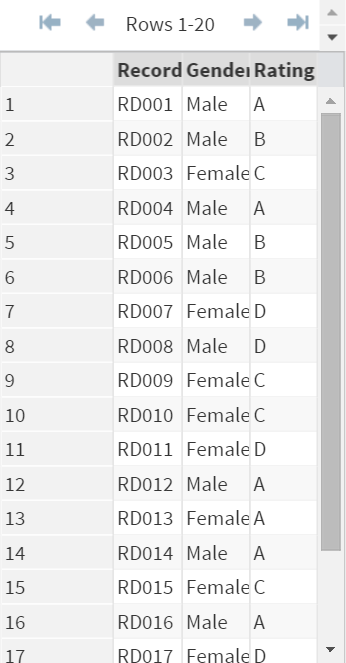
To create an output data set, simply add the (OUT=) option to the TABLE statement.
Example
Proc Freq Data=CS;
Table Rating / Out=Stat;
Run;
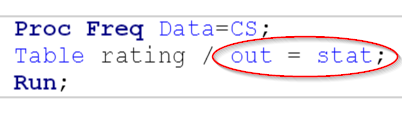
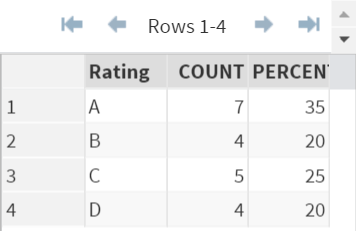
The (OUT=) option creates the output data set that contains the frequency statistics such as count and percent:
2-Way Crosstabulation Table
Creating the output data set for a 2-way crosstabulation table is just the same.
Example
Proc Freq Data=CS;
Table Gender * Rating / Out=Stat2;
Run;
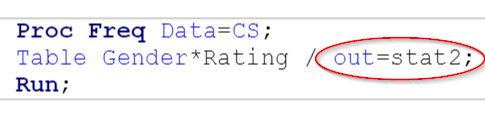
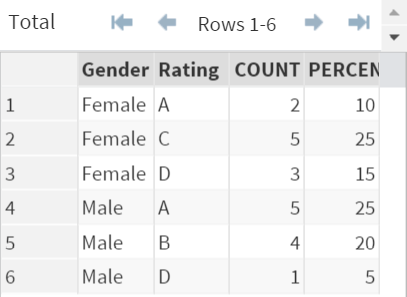
The (OUT=) option will create an output data set that has the frequency statistics across both the Gender and Rating.
What if you want to include the row and column percentage as well?
Simply add the OUTPCT option after the (OUT=) option.
Example
Proc Freq Data=CS;
Table Gender * Rating / Out=Stat2 OUTPCT;
Run;

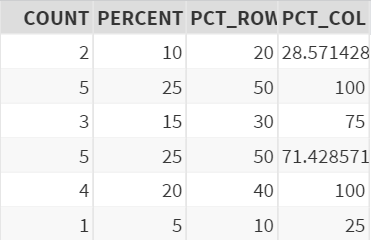
The output data set will include the row and column percentage:
Exercise
Locate the CLASS data set from the SASHelp library.
The CLASS data set contains a list of students as well as their gender (sex) and age.
Create a 2-way crosstabulation table across gender and age. Suppress the results on the Results window and save the results in a data set instead.
Locate the CLASS data set from the SASHelp library.
The CLASS data set contains a list of students as well as their gender (sex) and age.
Create a 2-way crosstabulation table across gender and age. Suppress the results on the Results window and save the results in a data set instead.
Need some help?
HINT:
Use the Noprint option to suppress results showing on the Results window.
SOLUTION:
Proc Freq Data=SASHelp.Class Noprint;
Table Sex*Age / Out=Class2;
Run;
Fill out my online form.